 English


 After running into a number of difficulties creating interops for some COM DLLs, I realized I needed a tool that could extract specific type libraries from DLLs. Even Microsoft's OleView won't give me access to a specific type library from dll. Anyway, I searched google.com for a Resource Viewer and you were right in the top of the list. I played with your trial version for only a few minutes and I was hooked! It's even more than I was looking for and I'm happy to add it to my arsenal of tools.
More PE Explorer Tools
PE Explorer also comes with a Digital Signature Viewer, Debug Info Viewer, Relocation Viewer, Strip Tools, and a TimeDateStamp Adjuster.
Digital Signature Viewer
The Authenticode Digital Signature Viewer lets you view the certificate-based digital signature of an executable file, validate the identity of the software publisher, and verify that the signature of a PE file is valid and has been applied properly.
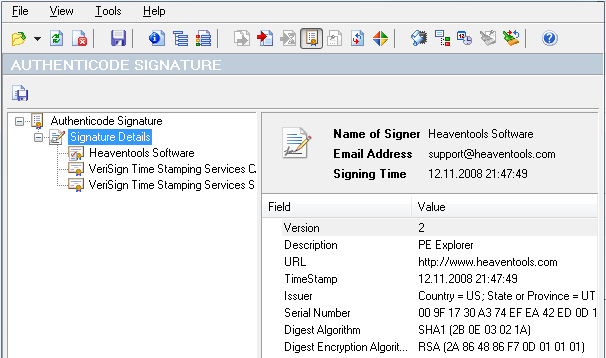
PE Explorer examines the certificate and obtain the developer's public key from the certificate. Then PE Explorer decrypts the message digest with the public key, and the same hash algorithm that was used to create the message digest is run on the code again, to create a second message digest (Real File Hash). Then PE Explorer compares the second digest (Real File Hash) to the original (Signed File Hash). Additionally, it compares the Real Checksum to the value reported by the header (Link Checksum), since the file checksum field of the optional header can be modified without invalidating the Authenticode signature.
Debug Info Viewer
This displays the debug information contained in the file. When an executable is built with debug information, it is customary to include details about the format of the information and where it is. The operating system does not require this to run the executable, but it is useful for development tools. An EXE can have multiple forms of debug information, an array of data structures known as the debug directory indicates what's available. These structures hold information about the type, size, and location of the various types of debug information stored in the file. Three main types of debug information are CodeView, COFF, and FPO.
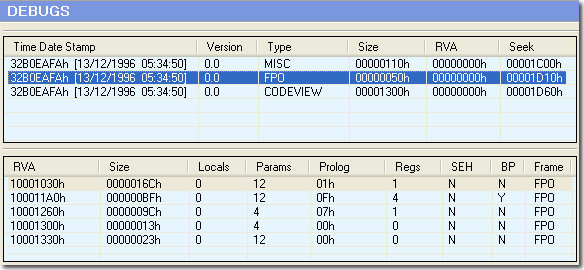
At this time, only FPO (Frame Pointer Omission) information is supported. FPO data allows the debugger to locate local variables and parameters, this information tells the debugger how to interpret non-standard stack frames, which use the EBP register for a purpose other than as a frame pointer.
Relocation Viewer
The relocation information helps the operating system load an executable file and apply fixups for absolute addresses. The relocation data is needed by the loader if the image cannot be loaded to the preferred load address ImageBase mentioned in the Optional Header. In this case, the fixed addresses supplied by the linker are no longer valid, and the loader has to apply fixups for absolute addresses used for locations of static variables, string literals, etc. On the other hand, if the loader was able to load the file at the preferred base address, the relocation data is not needed and is ignored.
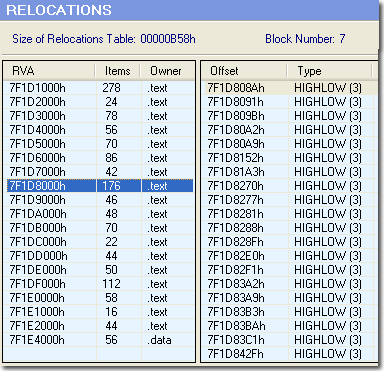
The Fix-Up Table contains entries for all fixups in the image. The Total Fix-Up Data Size in the Optional Header is the number of bytes in the fixup table. The fixup table is broken into blocks of fixups. Each block represents the fixups for a 4K page. The entries in the Fix-Up Table are called base relocations since their use depends on the base address of the loaded image.
Relocations Removal
This tool strips the table of the base relocations (Fix-Up Table) from the EXE files and saves space, making them smaller. As a rule, there's no need for an EXE to have a base relocation table. This is because EXEs are the first thing loaded into an address space, and therefore are guaranteed to load at the preferred load address. We highly recommend that you do not strip relocations from all EXEs you come across, because while this may save space, it may cause some executables not to work properly. On the other hand, in Visual Studio .NET, the linker omits relocations for EXEs when doing a release build. If you take a look at Windows Notepad.exe there is no relocation table within.
The Remove Relocations tool determines whether a file is a DLL or driver and warns you in each case. Since DLLs and drivers require a base relocation table, removing any of those relocations can result in corrupted files, and it is very likely that the newly saved file will appear to be invalid.
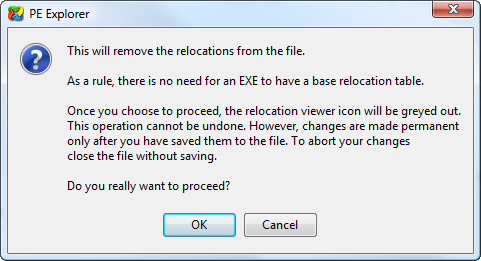
We highly recommend that you do not run the Remove Relocations tool on DLLs and drivers: base relocations should always be left in. If you want to take a chance you can proceed with removing Relocations, but please make a backup copy of the target file before making any changes to it.
TimeDateStamp Adjuster
Selecting "TimeDateStamp Adjuster" from the Tools menu will display the Adjuster dialog.
This tool does two things:
1. It allows for changing the TimeDate Stamp and
2. It sets every field to the adjusted TimeDate Stamp.
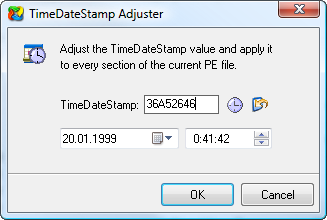
For version control purposes, you might want to modify all the TimeDate Stamps to one uniform value. This ensures that PE files compiled from the same source code do not appear different to your version control software because of differing TimeDate Stamps within the code.
< previous | next >
Get Started with a 30-Day Free Trial
Download PE Explorer and start exploring your applications now.
 PE Explorer runs on all versions of Windows, from Windows 95 to the latest version of Windows 11.